Version: Kora Courses, May 14, 2025 or later
Permissions required: Reviewers
- My Assessments provides a centralized space to view, manage, and complete reviews for submissions assigned to you.
- Reviewers will only see submissions in the My Assessments tab if an admin has turned on visibility for the assessments through the program assessment settings.
Open and view my assessments
- Go to the My Assessments (1) from the dashboard.
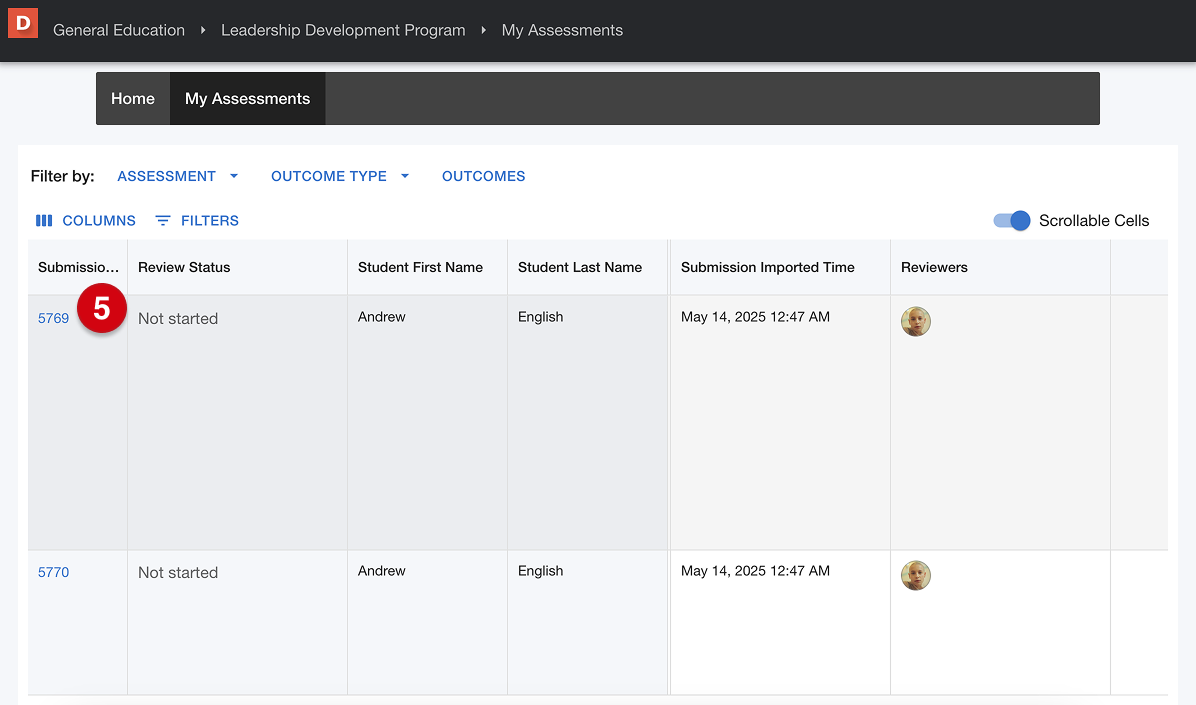
- Submissions assigned to you for review will appear in a grid view (2).
- Under the Reviewer column, your avatar (3) will confirm you are assigned to the submission.
- The table includes details such as the Submission ID, review status, student first and last name, last submission time, submission imported time, assignment name, assignment type, assignment outcomes, review progress, review completion percentage, average score, etc. (4).
- Click a Submission ID (5) to open the student work and begin your review.
Manage my assessments
To effectively manage your assessments, you can customize how submissions are displayed and organized.
You can narrow down the submissions displayed using the Filter by options.
- Assessment lets you select the type of assessment, such as Program Assessment, Course Assessment (Faculty, Self, or Peer) (1).
- Outcome Type allows you to filter by required or additional outcomes for Program or Course assessments, and toggle visibility for required outcomes without assessment (2).
- Outcomes let you select specific outcomes you want to use during your review (3).
- Use the Columns option to show or hide specific data fields in the table, such as assignment name, course details, and reviewer statistics.
- Use the Filters option to create custom filters that help you quickly find submissions based on selected criteria.