Version: Kora Courses, August 20, 2025 or later
Permissions required: Administrators
The Reviewers page provides a list of all reviewers assigned to your program. Everyone added to the program, including Admins and Managers, can act as reviewers and be assigned submissions for assessment.
Reviewers page overview
Here, you can view key details such as reviewer names, roles, the date they were added, and their review progress. This page helps you track reviewer activity and manage assignments efficiently.
Any person you add through the Add People operation will automatically appear on this page as a reviewer. For more information on how to add people to a program, please see "Add people".
- To view the list of reviewers, click the Reviewers tab (1).
- The Reviewers page displays each reviewer's name, role, date added, review progress, review completion, and review status (2).
Display reviewers' data in columns
- The Reviewers page lets you customize which reviewer details appear in the grid view. Click on Columns (1) and you can choose to display or hide specific columns, such as Reviewer ID, Name, Role, Date Added, and Review Progress.
- Click Show/Hide All or Reset to quickly make changes (2).
To see more details, please see "Display reviewers' data in columns" section in "Allocate or remove reviewers from submissions."
Filter reviewers using columns, operators, and values
- You can filter (1) the list of reviewers by applying conditions based on columns, operators, and values.
For more information, please see "Filter reviewers using columns, operators, and values" section in "Allocate or remove reviewers from submissions."
1. Select reviewers
To allocate reviewers to submissions, first, select the reviewers you want to assign. You can allocate a single reviewer or multiple reviewers at once.
Allocate a single reviewer to a submission
You can allocate a reviewer to submissions using one of the following methods.
Using the Actions button
- Click the checkbox in front of the reviewer you want to allocate (1).
- The Actions button will become enabled (2).
- Click Actions, then select "Allocate selected reviewers to submissions" (3).
Using the three-dot menu
- Locate the reviewer in the grid (1).
- Click the three-dot menu (2) next to the reviewer.
- Select "Allocate this reviewer to submissions" (3).
Allocate multiple reviewers to submission(s)
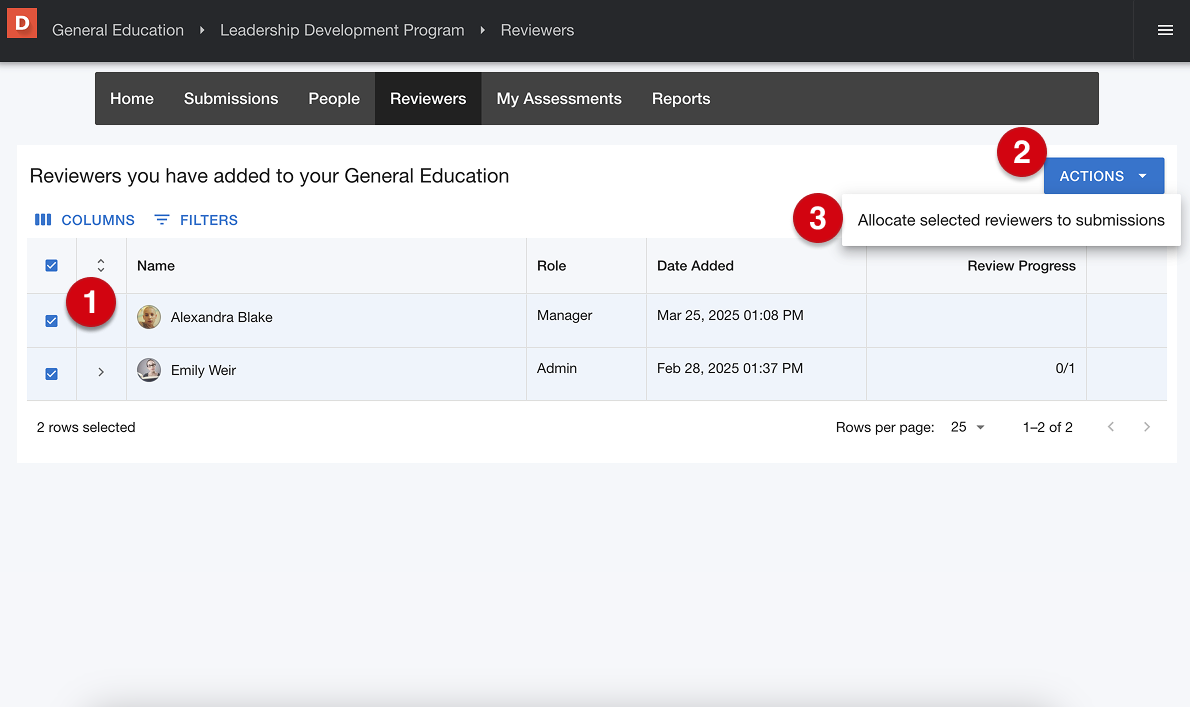
- Click the checkbox in front of each reviewer you want to allocate (1).
- Once selected, the Actions button will become enabled (2).
- Click Actions, then select "Allocate selected reviewers to submissions" (3).
2. Select submissions
- Select the submissions you want to allocate by clicking the checkbox next to each one (1). Once selected, click Next (2) to proceed with the allocation settings.
Use the Filter by options to narrow down submissions by assessment type, outcome type, or outcomes. Customize the grid using Columns to show relevant details, and apply Filters to sort submissions based on specific criteria. For details, please see "Filter by options, Display submission data in columns, and Filter submissions."
3. Configure allocation options
Configure allocation settings to control how submissions are assigned to reviewers.
- Set the number of reviewers per submission, apply limits on submissions per reviewer, and enable advanced options like sample submissions (1). For more details, please see "Configure allocation options."
- Once you have completed setting up the allocation options, click ALLOCATE (2) to complete the allocation process.
- Once the allocation process is completed, you’ll see some information about the status of the allocation - click Go to Submissions (3) or Go to Reviewers (4) to view the assigned allocations.
Removing reviewer (s)
You can remove a specific reviewer from a submission or remove all reviewers from a submission.
To remove a specific reviewer, follow the steps below.
If you want to remove all reviewers from a submission, please see "Remove reviewer(s) from submissions" in our guide "Allocate or remove reviewers from submissions."
- Go to the Reviewers tab (1).
- From the list of reviewers, find the person from whom you want to remove a submission and click the small arrow icon next to the reviewer’s name (2) to expand the list of assigned submissions.
- Scroll through the expanded section and locate the submission you want to remove (3).
- Drag or scroll horizontally until you see the three-dot action menu. Then, click the three dots (⋮) next to the submission (4).
- From the dropdown menu, click “Remove this submission from this reviewer” (5).